What's new

PraisePad keeps getting better.

Every improvement since launch, in plain words, newest first. Worship teams using PraisePad see the same list in the app, with a way to try each one.

TuesdaySeptember 29

  1. Your church and account

    Help, right where you are

    Press the question mark on any page for plain answers about that page, step by step, with a button that takes you there.

    • Search forgives typos, and each answer says who it's for.
    • On a computer it opens beside the page, so you can follow along.
    • Anyone can read the same help at help.praisepad.app, even before joining.
    Link to this
  2. Your church and account

    PraisePad is one word now

    Same app, same songs, same everything. One word is easier to search for and to tell other churches about.

    • If PraisePad is on your Home Screen, the name under the icon may still show the old spelling. It's the same app, and there's nothing to do.
    • A calendar you already follow may keep its old name too. Its services still update as usual.
    Link to this
  3. Your church and account For owners

    See every time support opened your church

    When you ask PraisePad for help, our support team may open your church to look, for up to two hours at a time. Settings now lists every visit: who, when, how long, and why.

    • Charts changed during a visit are listed with it, and show under their name in each chart’s history.
    • Support is never on your team: not in People, schedules, or any email.
    Link to this
  4. Songs and charts

    Chord-only lines like | C | Dm | change key too

    An intro typed as | C | C Dm | now changes key with the song, shows in the chord color, and hides in Lyrics view, like every other chord.

    • It works on the song page, on stage, in print, and in Nashville numbers.
    • Saving a copy of a song in another key moves them too.
    • Charts that already had lines like this are fixed, with nothing to redo.
    Link to this
  5. Your church and account

    More room on big screens

    On a wide monitor, Songs, Services, People, Schedule, Home, and Reports use more of the screen, so lists and charts sit side by side comfortably.

    • Forms and settings keep a comfortable reading width.
    • Phones, iPads, and laptops look just as before.
    Link to this
  6. Your church and account

    Paste a screenshot into Report a problem

    Take a screenshot, open Report a problem, and paste it straight in. It's attached for you, named with the time.

    • Words you paste still paste as words, even from Word or Excel.
    • Up to three screenshots or files with a report.
    Link to this

MondaySeptember 28

  1. Services and sets For leaders

    Undo a change made with words

    Changed the set list by typing what you wanted? One tap puts it back the way it was, songs, notes, and lengths included.

    • Undo is right in the message that says what changed.
    • Undo last change sits beside Change with words until you leave the page.
    Link to this
  2. Reports and export For leaders

    Report to CCLI, song by song

    The song usage report lists exactly what to enter on CCLI's reporting site: each song's CCLI number and how many times you used it.

    • Copy each number with one tap, and tick it off as you go.
    • Songs missing a CCLI number are listed, so nothing slips through.
    Link to this
  3. Reports and export For admins

    Export everything, however big

    A church with lots of PDFs and recordings gets its export in parts, so every file is included.

    • Each part is its own download.
    • The first part has all your charts and details.
    Link to this
  4. Stage

    Write on PDFs on stage

    Mark up a PDF chart the way you would on paper: a pen, a highlighter, an eraser, and notes pinned to a spot on the page.

    • Your marks are yours: the rest of the band sees their own.
    • They're saved with the song and come with you offline.
    Link to this
  5. Stage

    Download one song for offline

    Practicing at home or playing somewhere without Wi-Fi? Download a single song from its page, just like a whole service.

    • Its chart, PDFs, and your notes all come along.
    Link to this
  6. Stage

    Guests can keep the set offline and follow along

    A guest musician with a link can keep the set on their device until the link ends, and follow the leader's page when you play together.

    • No account needed.
    • When the link is turned off, it stops working for them.
    Link to this
  7. Your church and account For admins

    See your AI allowance

    Billing shows how much of this month's AI allowance your church has used, and when it resets.

    • It covers the smart import, suggestions, and the chart check.
    Link to this
  8. Songs and charts For leaders

    The chart check points to the line

    When the chart check finds something, it tints the line in the editor, and Show line takes you straight there.

    • A photo or PDF read by the smart import tints the lines it wasn't sure of.
    • Numbers written above the words are read as chords in numbers.
    Link to this
  9. Services and sets

    A room for each service time

    Add a location to each service time, like “Room 204”. It shows with the times everywhere, and in your calendar.

    • With a 9:00 and an 11:00, the plan's times follow the one you pick, and print has a column for each.
    Link to this
  10. Stage

    Choose your chord color on stage

    Amber, blue, green, or the same as the words: pick what reads best from where you stand.

    • It's in the stage's Display options, and it's saved for you.
    Link to this
  11. Stage

    Playing together follows the leader's page

    When the leader turns the page, everyone following turns with them, not just to the right section.

    Link to this
  12. Scheduling

    Hear when a service moves

    If a service you're on moves, is cancelled, or you're taken off it, you're told, after ten quiet minutes, so a few quick edits make one message.

    • Changing it back sends nothing.
    • One request per service, with a Respond button for each position.
    Link to this
  13. Scheduling For leaders

    Fill open spots in one go

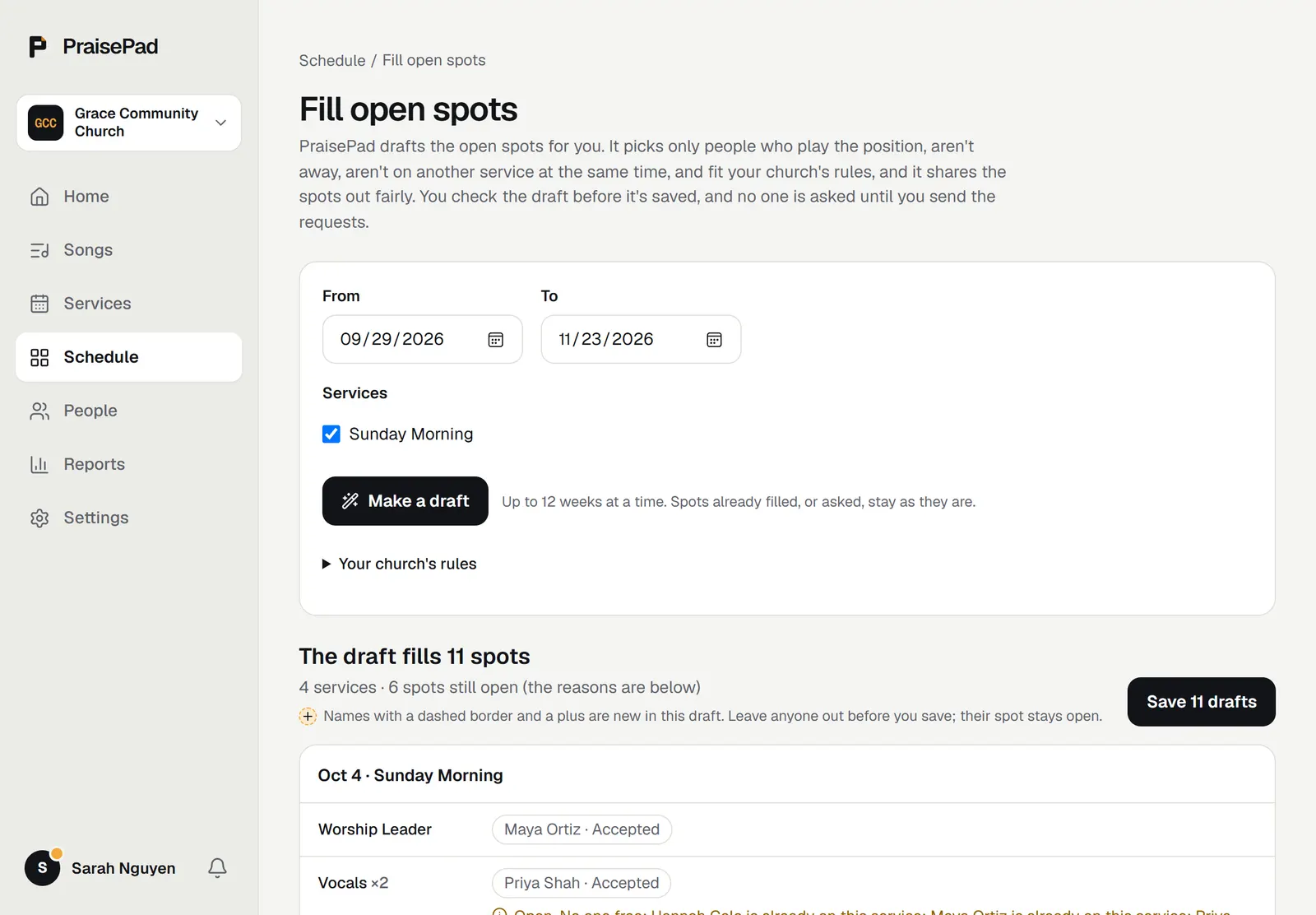
    PraisePad drafts the schedule for up to twelve weeks: who plays what, around time away and your church's rules, shared out fairly.

    • You check the draft and save it before anyone's asked.
    • Musicians see nothing until the requests go out.
    • Leave anyone out of a draft with one tap.
    Fill open spots: a draft of the coming weeks, with each position filled by someone on the team.
    Link to this
  14. Scheduling For admins

    Scheduling rules, in your own words

    Write rules the way you'd say them, like “Tom and Anna serve the same weeks”, and PraisePad follows them when it schedules.

    • Or set them up by hand.
    • They're pointed out when you choose someone yourself.
    Link to this
  15. Stage

    Open any song on stage

    Stage view on a song's page opens that song alone, any time, with no service needed, in the key you're previewing.

    Link to this
  16. Imports For leaders

    Import 50 PDFs at once

    Drop in a folder of PDF charts. Each one is read into an editable chart, with its details filled in and themes suggested.

    • Songs that need a look wait for you; the rest import in one click.
    • Capo charts are saved in the key they sound in.
    • A batch can be undone.
    Link to this

SundaySeptember 27

  1. Services and sets For leaders

    Suggest songs for a theme or a sermon

    Tell PraisePad the theme, a scripture, or paste the sermon notes, and it suggests songs from your own library, with keys and the reason for each.

    • Tick the ones you want and they're added to the plan.
    • It only suggests songs your church already has.
    Link to this
  2. Services and sets For leaders

    Change the set list with words

    Press Ctrl+K (or ⌘K) and type what you want: “swap the second and third songs”, “add a welcome before the first song”. You see it before and after, and nothing changes until you say so.

    Link to this
  3. Services and sets For leaders

    Keys that suit your worship leader

    The plan suggests the key your worship leader usually leads a song in, or one that fits their vocal range.

    • Add vocal ranges on People, or let each person set their own.
    • Song-order warnings catch a section the order names but the chart doesn't have.
    Link to this
  4. Stage

    Chord diagrams for guitar, piano, and ukulele

    Show the shapes for every chord in the song on stage and in print. With a capo on, the diagrams follow it.

    Link to this
  5. Songs and charts For leaders

    A chart check before Sunday

    The editor checks a chart for chords it can't read, sections the song order misses, and a key that doesn't match, with an optional AI look at the chords.

    Link to this
  6. Services and sets For admins

    Services that plan themselves ahead

    Set a service type to repeat, weekly or on the days you choose, and PraisePad keeps the next weeks of services ready.

    • Time away can repeat too: every other week, the first Sunday, and so on.
    Link to this
  7. Services and sets

    A playlist for every service

    The Playlist tab gathers each song's reference recordings in set order, so the team can listen through before rehearsal.

    Link to this
  8. Songs and charts For leaders

    Notes for each position

    Add a note to a song for the keys, the bass, or any position, and only the people playing it see it, on the service and on stage.

    Link to this
  9. Team and updates

    Updates on every service

    Each service has its own Updates: a place for “we're starting at 8:30” and the like, on the service page and on stage.

    • Leaders can post an announcement that goes to everyone scheduled.
    • Find a sub asks the people who play that position, for you.
    Link to this
  10. Imports For leaders

    Charts in Nashville numbers

    Import a chart written in numbers from a PDF, a photo, or pasted text. It asks for the key, and saves it as chords you can move to any key.

    Link to this

SaturdaySeptember 26

  1. Stage

    Download for offline

    Download a service and everything it needs, so the set is on your iPad even when the church Wi-Fi isn't.

    • Notes you make offline sync back when you're online again.
    Link to this
  2. Stage

    Playing together

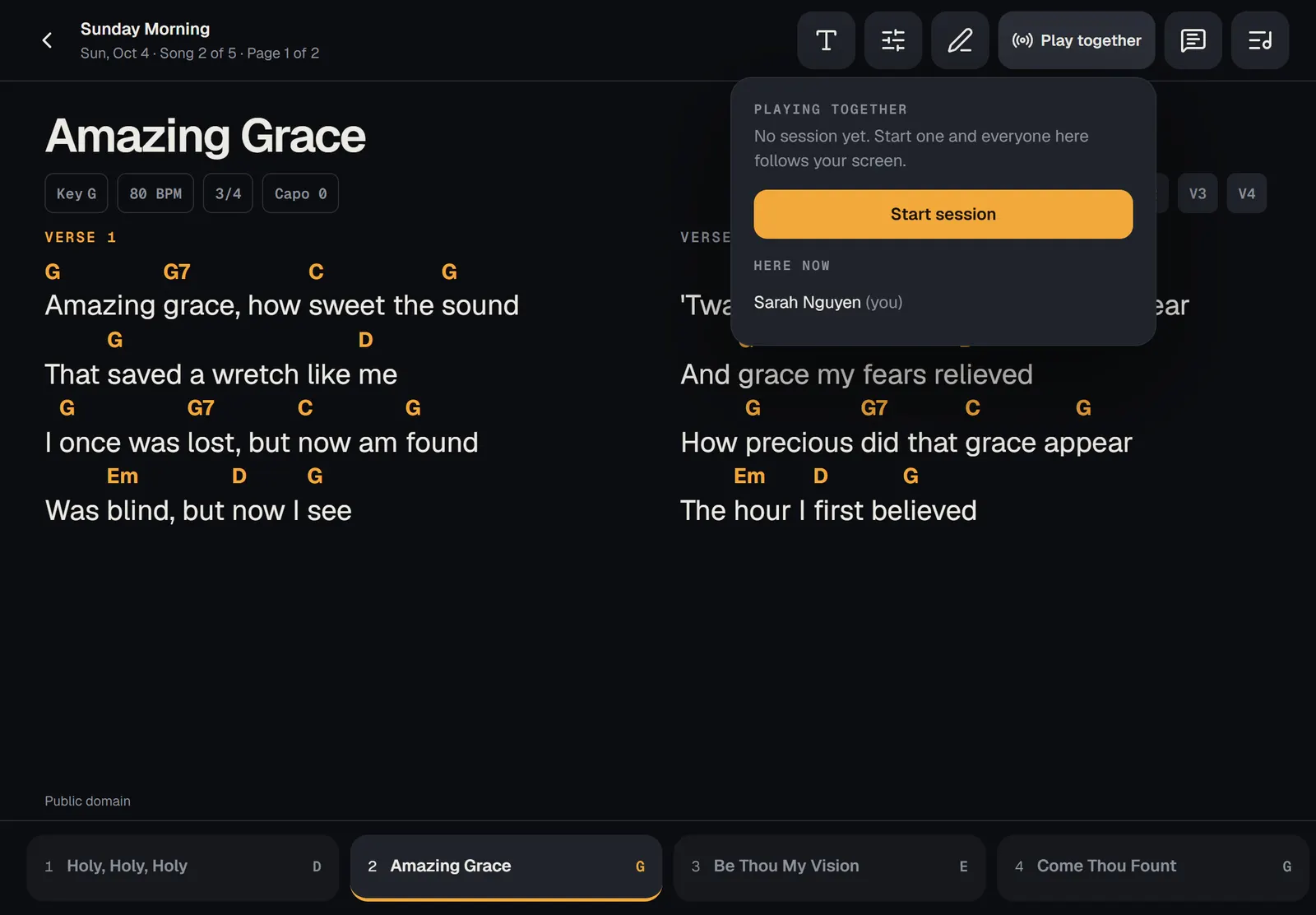
    The leader turns the page, and every screen in the band follows. No more “which verse are we on?”.

    The stage view with Playing together open: the leader's page, followed by the band.
    Link to this
  3. Reports and export For leaders

    Song usage and rotation reports

    See which songs you've used, how often, and which haven't been heard in a while, for any dates you choose.

    • Download any report as a spreadsheet.
    Link to this
  4. Imports For leaders

    Bring everything with you

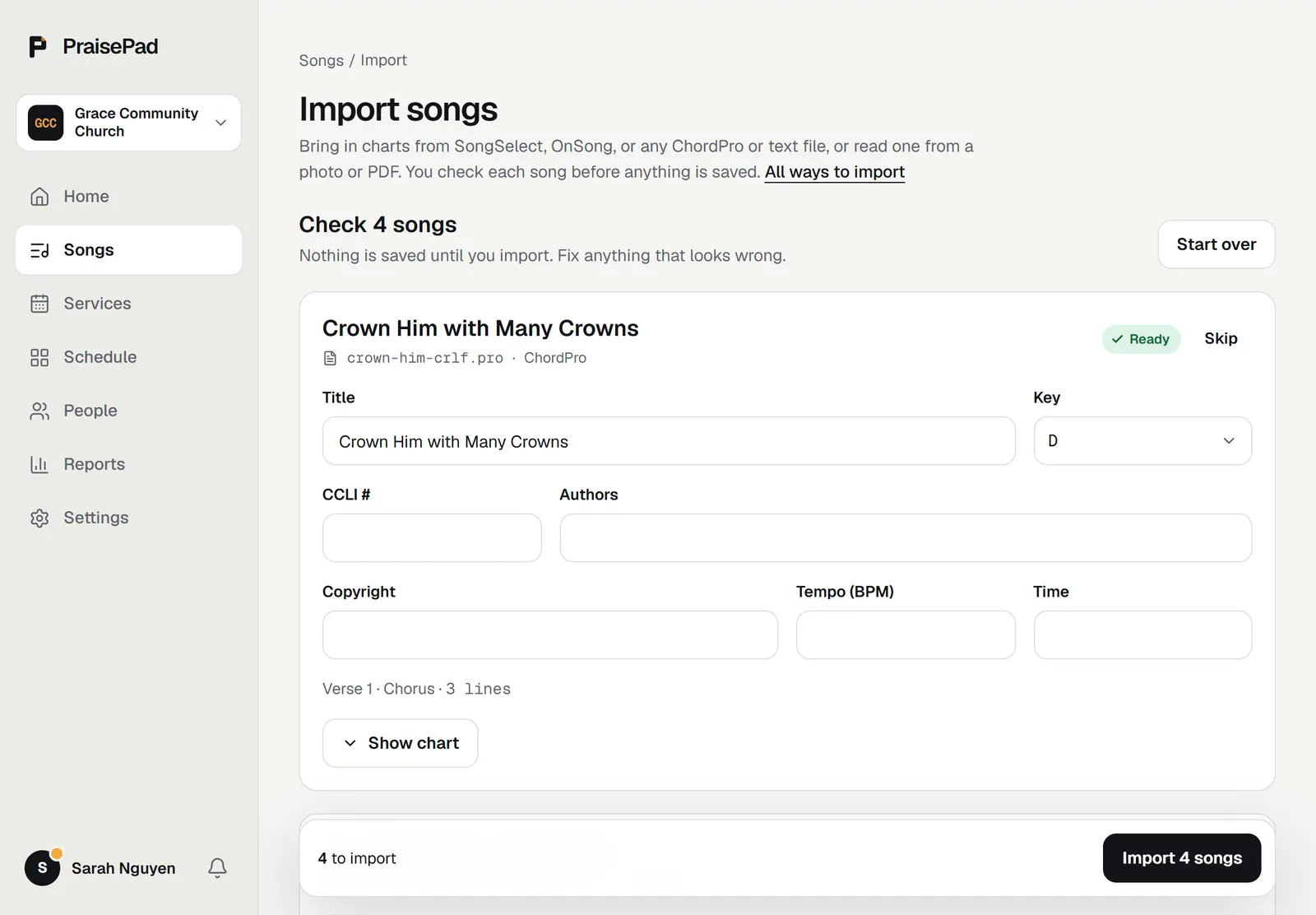
    Import your OnSong library (with its set lists), your people from a spreadsheet, or any chart from a photo, a PDF, or pasted text.

    • A photo of a paper chart becomes an editable chart.
    • You review everything before it's saved.
    Importing charts: each one read and shown for a look before it's saved.
    Link to this

FridaySeptember 25

  1. Scheduling

    Scheduling your team

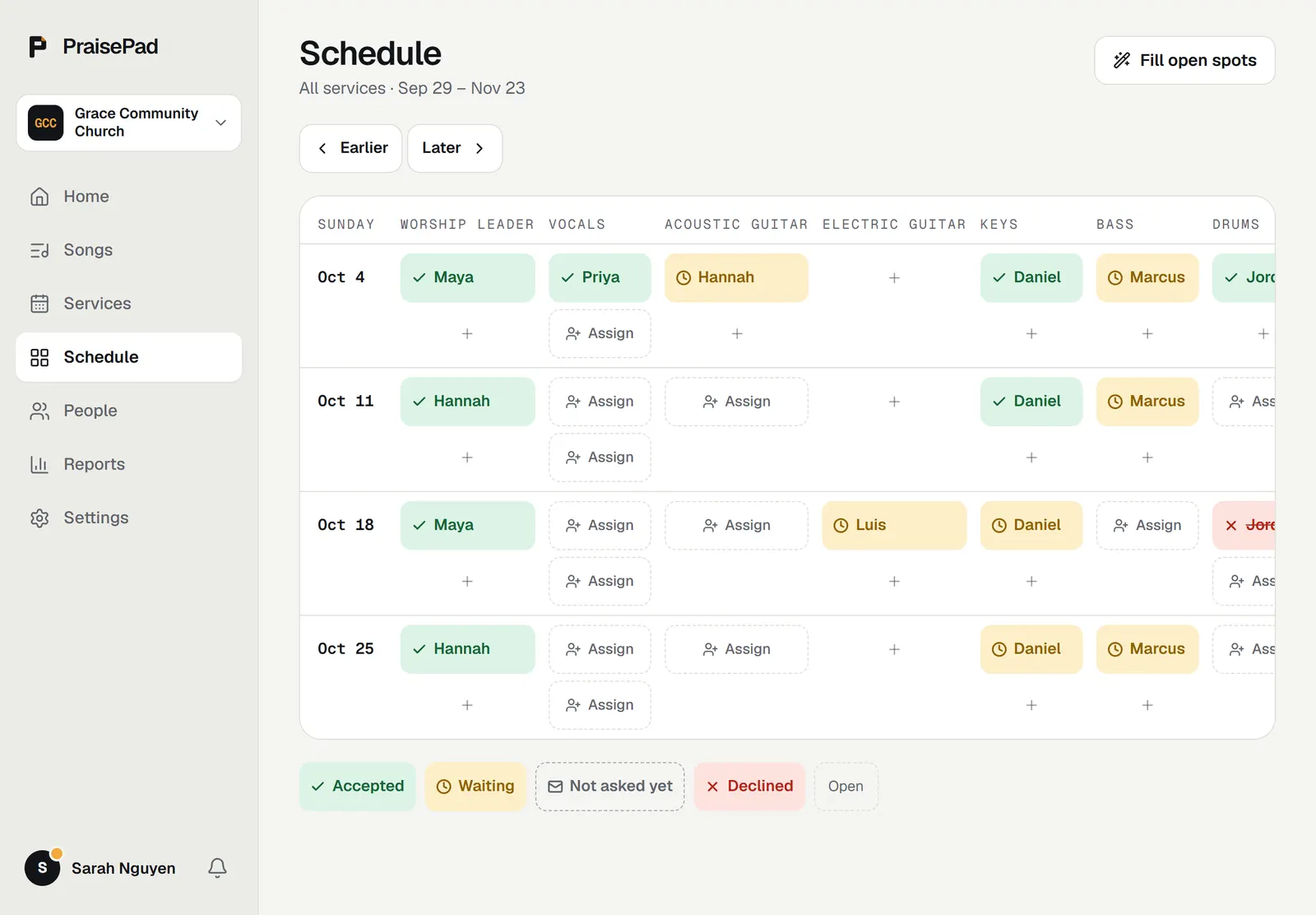
    Ask people to serve, and they answer from the email. See everyone at a glance on the schedule, and your own services in My schedule.

    • Add time away so you're not asked when you can't.
    • Reminders go out before you play.
    • Subscribe to your schedule in your calendar.
    The schedule: the coming services, each position filled or open, and who has answered.
    Link to this
  2. Stage

    The stage view

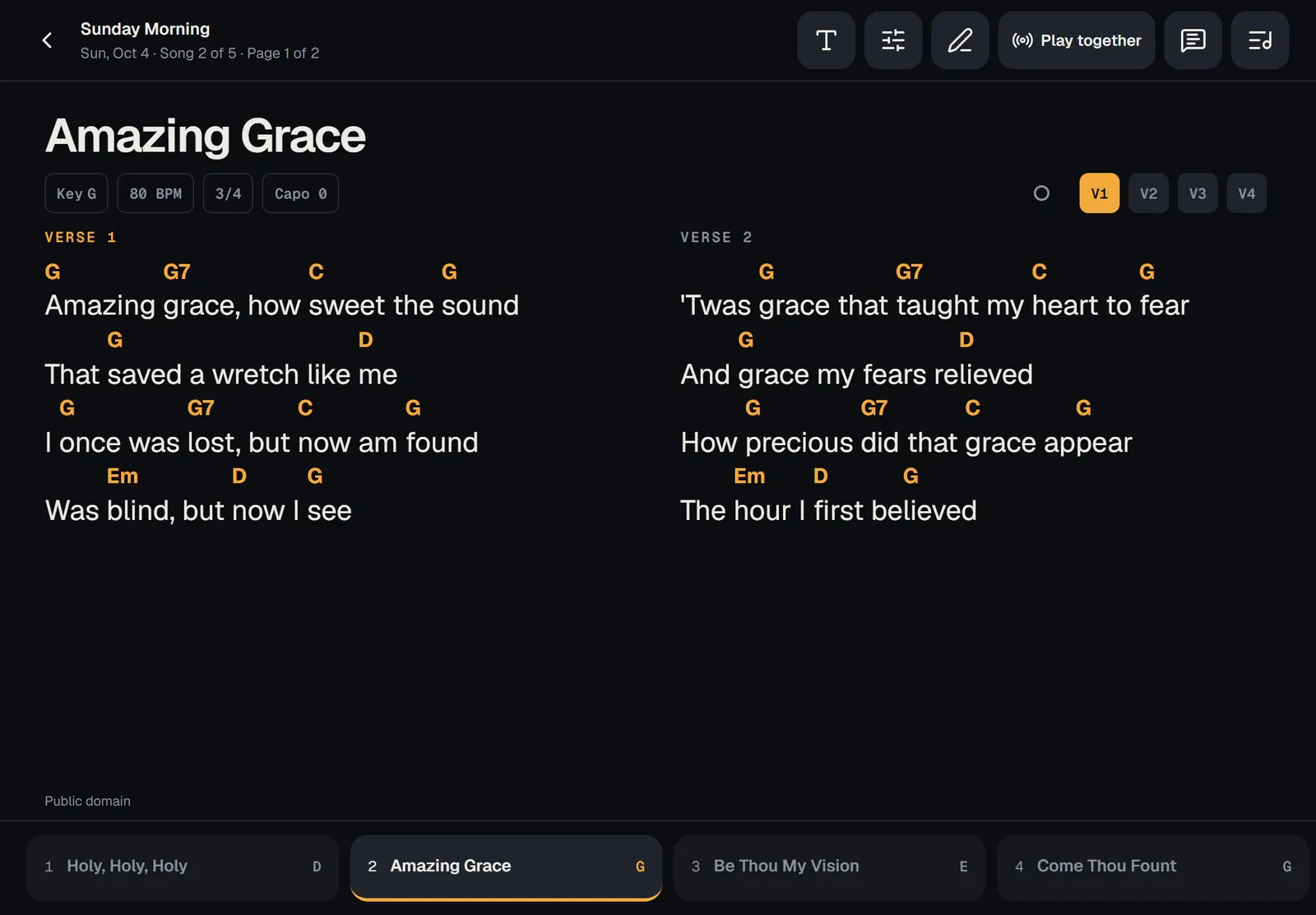
    Your whole set, full screen, sized to fit. Turn pages with a tap or a Bluetooth pedal, add notes and drawings, and keep time with the metronome.

    • Send a guest musician a link: no account needed.
    • Add PraisePad to your Home Screen for a full-screen app.
    A chart on the stage view, in two columns, with the chords above the words.
    Link to this
  3. Services and sets

    Plan services and set lists

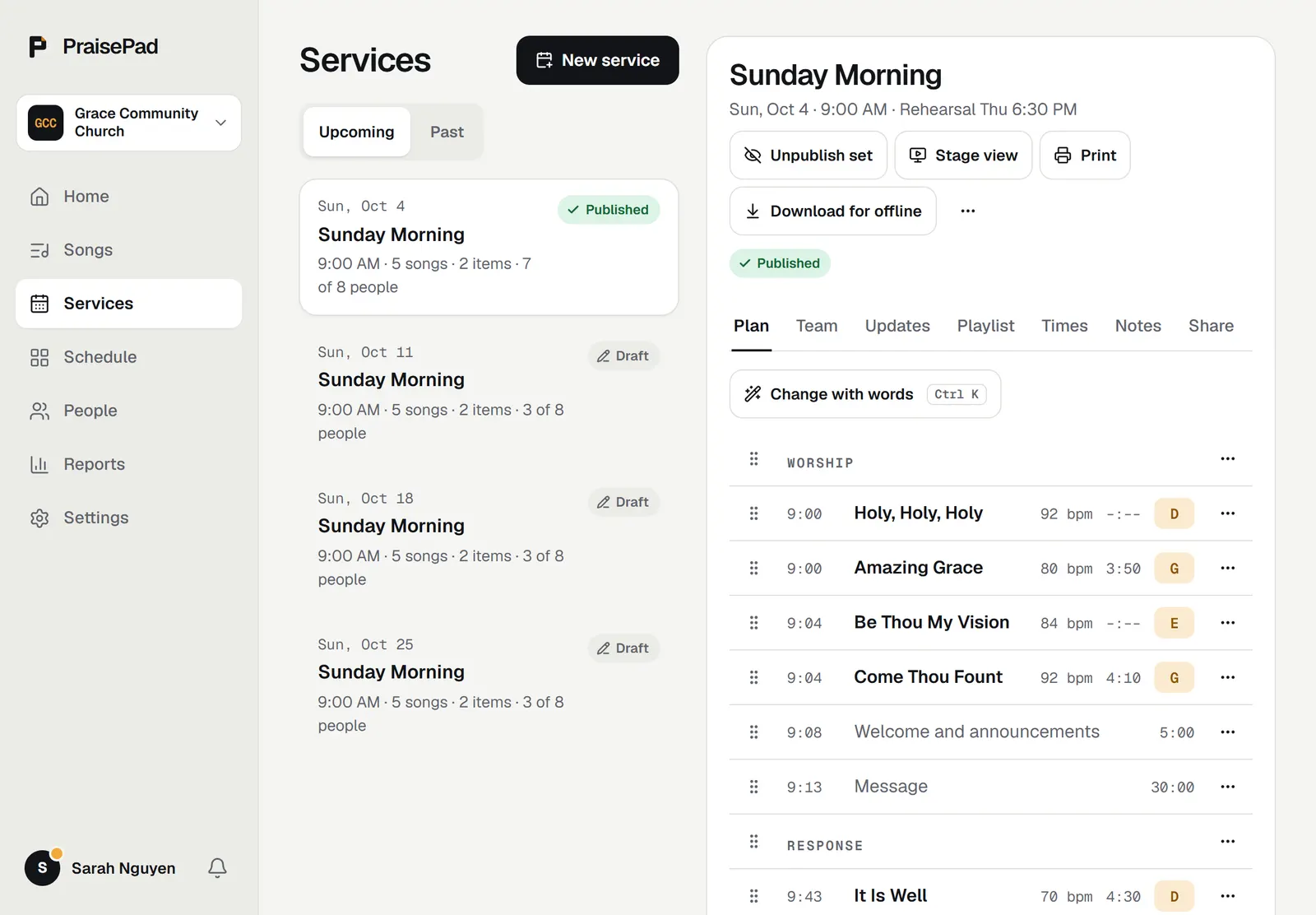
    Build each service: songs in their keys, items like the welcome and the offering, and who's on the team, with the open spots shown.

    • Publish when it's ready: the team sees it then.
    • Print a run sheet, or duplicate last week's.
    A service plan: songs in their keys, the welcome and the offering, and the times.
    Link to this

ThursdaySeptember 24

  1. Songs and charts

    PraisePad is here

    Your church's songs, charts, and team in one place. Sign in with a link by email, no password to remember.

    • Charts that transpose to any key, with a capo and in Nashville numbers.
    • Print a chart that fits the page.
    • Invite your team, each with the right access.
    Link to this