Kids & Check-In · No extra charge, for now
Check them in. Send them home with the right adult.
A family checks in at the welcome desk, a name tag prints for each child and a receipt for the parent, and the code on the receipt is how the child goes home. Volunteers work on paired iPads and laptops with no sign-in, and it keeps working when the Wi-Fi drops.
No extra charge, for now: an owner turns Kids & Check-In on under Settings, then Modules. The welcome desk and the rooms’ iPads need no account and use no seat.
- Learn your part: Kids and check-in For the Kids team: the desk, the rooms and the leaders
A quick desk.
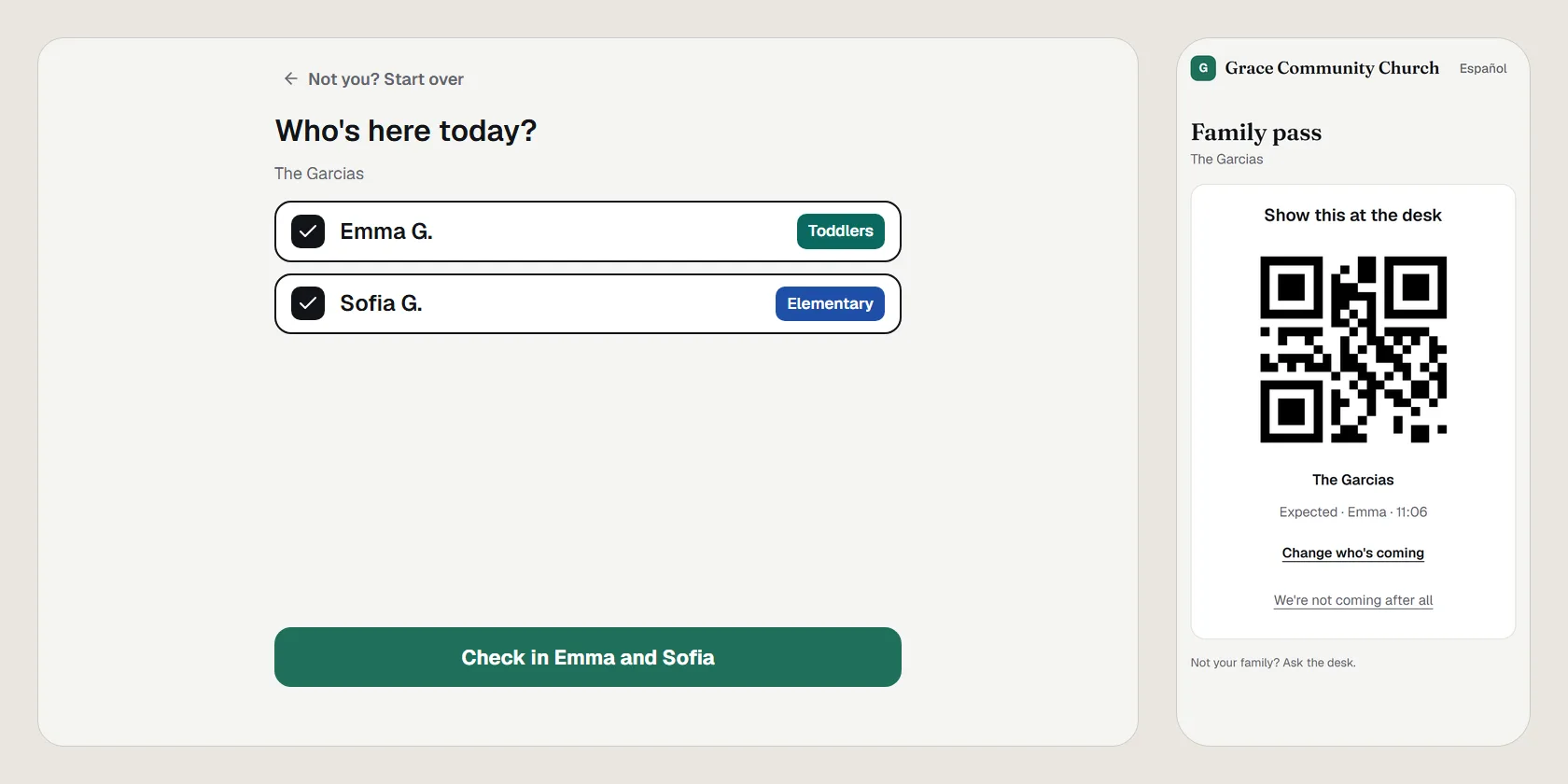
The welcome desk finds a family by last name or phone with last week’s rooms already picked, and a visiting family takes about a minute, in English or Spanish. Families who’ve been before check in at a kiosk, or tap who’s coming on their family pass before they leave home.
Safe rooms, safe pickup.
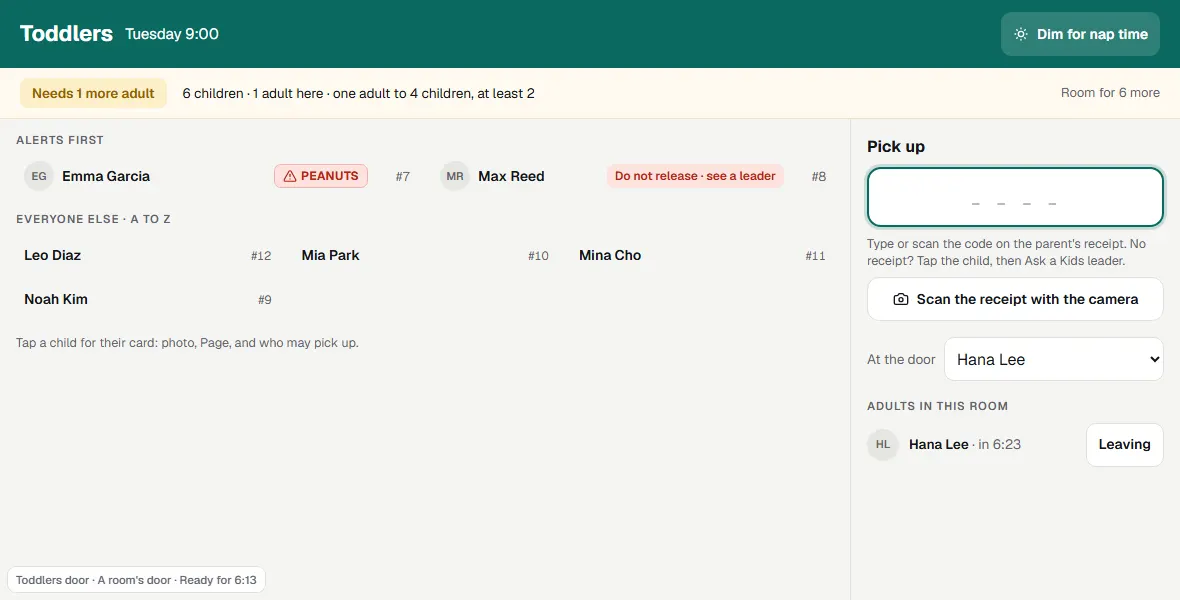
Each room’s iPad shows its list with alerts first, counts the adults in and out, and says when it needs one more. Pickup needs the code on the parent’s receipt; a Kids leader can okay anything else from their phone, and it’s logged.
Parents paged, never named.
Page a parent and “#23 · Toddlers” shows on a hallway screen, and on the screens in the service when you run them with Present: a page number, never a child’s name or the code. Kids leaders see every room live, and get a Monday list of new families.
What’s in it
- How it works Check in at the desk, pick up with the matching code, alerts on the name tag, and parents paged on the screens.
- Check families in at the welcome desk Find the family, check the children in with one tap, hand over the labels, and add a visiting family in about a minute.
- The label printer (DYMO LabelWriter 450 Twin Turbo) DYMO Connect on a Windows or Mac laptop, big labels on the left and small on the right, and the browser allowed in.
- The room's iPad: pickup, paging, and the end of the service The room's list with alerts first, adults in and out, pickup with the code, paging, closing the room, and dim mode.
- Self check-in at a kiosk iPad Returning families check their children in with their phone number on a lobby iPad; the desk hands over the labels.
- The family pass A private link for each family: who's coming, a code for the desk, then each child's room, pickup code and pages.
- New families: the Kids poster, the form and the welcome email A poster with a code to a short form; the desk opens it filled in. Then a welcome email on their first day.
- When the wifi drops (and the backup sheet) Stations keep checking in from their own copy, pickups match tag to receipt by eye, and it all catches up later.
- For Kids leaders: okays, the live view, and adding an adult Okay a pickup without the code from your phone, watch every room live, add an adult, and keep each child's Kids page.
- Incident reports: write it up, review it, tell the family The room's iPad writes up what happened; a Kids leader reviews it and can send the family a copy. Kept for good.
- The Kids report: who came, who's new, who's gone quiet, who served Children per room week by week, each morning's roster, first-time families, regulars gone quiet, who served.
- Children's privacy in Kids & Check-In What prints on labels, what each station shows, where pickup photos are kept, and how long check-ins are kept.
Each opens its help article. Kids & Check-In: every feature, on the Everything page
Questions
Does it print labels?
Yes, on a DYMO LabelWriter 450 Twin Turbo plugged into a Windows or Mac laptop: a big name tag for each child, and small labels for the parent’s receipt, a bag tag and the room’s paper sheet. The iPads send their labels to that laptop.
From the help: The label printer (DYMO LabelWriter 450 Twin Turbo)
What happens when the Wi-Fi drops?
Before each service every station keeps its own copy of what it needs. If the internet goes it carries on from that copy, says how many check-ins are waiting to send, and sends them by itself when the Wi-Fi is back.
From the help: When the wifi drops (and the backup sheet)
Can new families register before Sunday?
Yes. A poster by the doors has a code to a short form on your church’s site, in English or Spanish by the phone’s language, and the desk opens their form already filled in.
From the help: New families: the Kids poster, the form and the welcome email
What does it cost?
Nothing extra for now: Kids & Check-In is included. An owner turns it on under Settings, then Modules, and nothing changes for anyone until they do. The welcome desk and the rooms’ iPads need no account and use no seat; volunteers you also schedule with Serve count toward your plan’s team size, as any team does.
From the help: Modules: Present, Serve, Kids, Giving and Events
Something else? Search the help centre, or ask Pad, PraisePad’s assistant, with the button at the corner of the page.
The rest of PraisePad
- Songs and the stage Every chart in every key, on an iPad or phone, even without Wi-Fi.
- Services and scheduling Sunday planned in minutes, and the right people asked once.
- Serve Every team on the schedule: greeters, ushers, parking, kids, tech.
- Present Slides from the service, every screen, the sermon from your notes.
- Giving Gifts recorded and counted by two, statements in minutes, giving online.
- Events and the calendar One calendar, sign-ups, tickets, check-in at the door, rooms booked.
- Your church’s site A cover photo, Plan a visit, sermons, Give and a chat, in English and Spanish.
- Everything in PraisePad All 145 things it does, by area, each with its help.
Try it with your own church.
Every new church starts with 14 days of Team 10’s features for up to 5 people, no card needed.